Showing posts with label business. Show all posts

Wednesday, June 29, 2011

Small Business Development Center dodges a bullet

Everyone in South Carolina should breathe a sigh of relief that the budget for the Small Business Development Center is being reinstated thanks to a veto override today. Cutting revenue producing/job producing/business supporting initiatives like this program is short-sighted and counter-productive.

The SBDC is co-funded by the federal Small Business Administration, so each dollar of state funding brings in additional funds from the SBA to support the growth and development of small businesses in our state.

In the past five years, the SBDC has helped more than 500 businesses get started, assisted those businesses in obtaining more than $1 billion in government contracts and $815 in business loans and contributed to the creation of more than 6000 sustained and continuing jobs - more than 2700 of them in 2010. Each dollar the state has invested in the SBDC has returned $5.85 to the state's economy.

As a small business launched in the last two years, Portfolio has benefitted from the presence of the SBDC in Greenville. We received invaluable advice, information, direction and a sounding board for ideas. I know several people whose businesses might not be functioning today were it not for the assistance they found at the SBDC.

Sound bites and slogans are tossed about readily these days. Often they revolve around supporting small businesses and growing jobs. The governor's veto here is a rubber-hitting-the-road moment. The SBDC more than supports itself and achieves the goals of growing the economy through the strength of small businesses. Each year, it seems, this program must fight for its life. With the heart and soul of its function being the advancement of business and the creation of jobs - and a battle it is helping to win - that seems to be an odd program to have a target on its back.

If you are a small business hoping trying to grow, an individual hoping to start a business, or an established business looking to expand avail yourself of the resources and experienced consultants at the SBDC. It's an unparalleled resource, it is free to you and hopefully it will not be an endangered program lost to a frenzy of budget cutting.

The more we use it; the less likely we'll lose it.

Wednesday, June 22, 2011

Deconstructing the language of design

Acronyms and technology are barrier islands between most of us and the tools we need to use and understand to promote, manage and run our businesses.


So, here are some basics to help you communicate in the language of the designer.
  • Icons. An icon is a small image that represents something else. Ideally, it should be very clear so there is no guesswork on the part of the viewer about what they are looking at. Icons - like the ubiquitous man/woman bathroom signs - may be used to overcome language barriers and appear in all manner of sizes. In the online/digital word, icons are often much smaller and designed to be a call to action. When you see an envelope symbol, you just know that is the link to use to send an email.
  • Favicons. A variation on the icon theme designed for today's social media marketplace. These are 16X16 pixel images that represent a company or an individual online. Favicons are used on websites (the image that appears in the browser tab alongside the name of the site), on Twitter/Facebook and other sites and in situations where it's not possible to run your full logo. A favicon can be a reduced version of your logo or a specially designed alternative version. If you intend to have a significant online or social media presence, you should ask your designer to create a favicon since not all logos will lend themselves to reduce or crop to this size.
  • Pixel? What's a pixel? Take a photograph. Get a magnifying glass. Look very closely at the photo and you will see it is made up of millions of tiny squares. Each square is a pixel, which is the smallest unit of a picture. Each pixel has its own grid coordinates on the image. Step back and the pixels visually join together to create the overall image - or in the vernacular - a pix. 
  • Resolution roulette. I - or someone with an advanced degree in printing technology - could go on forever on dpi (dots per inch) vs ppi (pixels per inch) and how each is used. But here's what 99 percent of us need to know:
    • The higher the resolution the more detail in the image.
    • High resolution is only as good as your ability to see it.
    • Computer monitors - it doesn't matter how much you spend on them - display images at 72 dpi. 
    • Magazine quality printing is 300 dpi or better. 
    • Higher quality images are larger, take up more space and take up more time to load. So unless you are printing a magazine, you want your images to have a resolution of 72 dpi if they are being viewed on a webpage.
  • Understanding color: RGB, CYMK, HSL, Pantone, oh my! There are different color processes for different types of printing. The desired color is created by either adding or subtracting colors at certain percentages. Different types of printing utilizing different inking and color systems and thus require photos and graphics that are created using the right color process.

    For example, newspaper offset printing is a four-color process known as CMYK (Cyan Magenta Yellow and Black), colors on web pages are represented by hexadecimal codes created by an RGB process (Red Green Blue), and many high end printers match colors using the Pantone Color Matching System which uses a patented process of base inks with a precise color matching to reproduce just about any color that the eye can see.

    Why does this matter? Because there is no such thing as RED. There are hundreds of reds. And if your logo uses Pantone 185 (232 Red/17 Green/45 Blue), it will not match up with Pantone 187 (175 Red/10 Green/45 Blue).

    Make sure you ask your designer to provide you with the color values for all the colors used in your logo and any alternate color palette that's developed for you. Only with that information can you guarantee a proper reproduction of your logo and your brand every time.
------
Have questions about your logo or branding? We'd love to talk with you. Email us at design@portfoliosc.com.

Logo design: Getting what you pay for

Great. You decided to get your company's logo professionally designed. So how do you know you've gotten what you are paying for, what should you expect?

There are as many definitions of "design" and "designer" as there are people pondering the concept. Design - as in all art - is in the eye of the beholder. One definition that many might agree on is that graphic design is a creative process undertaken to convey a message to a specific audience. That definition is a good one because it conveys that design is collaborative and it is a process. 

So the first thing you should expect from your designer is some method of sharing and discussing your company, your products, your philosophy, your persona and your likes and dislikes on things as basic as color and type style. This may take the form of a conversation or two, some written questions provided as a way to promote new lines of thinking. If you own Compass Services, it might seem like a "no-brainer" to make some compass illustration your logo. But an experienced designer will dig deeper with you and you may end up somewhere that wasn't on your horizon when you started out.

Once the designer has more information, they have to translate that into ideas. Ideas are rough - often unformed. Because people tend to get caught up on color and typeface, these first passes may be nothing more than conceptual pencil sketches. Any good designer should give you some choices. Walk away from any designer who can only give you one "choice" and is looking for a quick approval. 

Once you've settled on a concept, the designer will refine the design. This is fairly important as it involves deciding on a color palette. This color palette should impact every other area of your public persona - website, brochures, business cards, trucks, etc - so it's important. Imagine if Coca-Cola founder John Pemberton had said, "You know, I really don't like the red." Ideas about appropriate colors should already be forming - from your design concept discussions, from your business, from your products. But if nothing trips your trigger on the first pass, most designers will create more choices. 

This is where we get into the issue of deliverables. Once all is said and done, what should you get an how do you use it? 

  • Your designer should provide a logo in several different formats that you can use in different types of applications. At minimum you must get a vector file (.eps). This file is not an image but a data file and can be scaled up to a billboard or down to an icon without losing any detail. It is the .eps file that you will need for any high-quality printing, for clothing, for printing premium items like mugs or clothing. Printers may  tell you that they can take your .jpg (j-peg) file, which is really a static image of your logo, but they will then charge you a design or set up fee to basically turn your .jpg into their interpretation of your logo as a .eps file. Since they don't know your fonts or color palette, this may be inconsistent with your approved logo. You can get a feeling for the difference between a jpg and eps file by putting any jpg image into a word processing document. Now select the image and drag it until it fills the page. You will see it lose quality.
  • There are many areas where you can get away with a .jpg (such as online uses including digital stationary, email, and websites). If you want to have color backgrounds, you'll need a transparent logo in a .png format. This should be SOP for any designer.
  • Color palette. At minimum, you ought to know what colors are actually used in your logo and what typeface and styles are in use. A more detailed "branding book" or "identity guide" may be an option with your designer and may be worth having. But there are many times that know what your actual colors are and what ink settings are required to reproduce them can be very important. 
So, how much does all this cost? That is going to vary widely. But most designers will have a pricing level with minimal changes and, at the higher end, a level that includes unlimited changes. Make sure you honestly assess if you are a tweaker or not. Be honest; deceiving yourself can be costly when your designer starts piling on extra charges. 
------
NEXT: Icons and favicons, oh my! Deconstructing the language of design.

Monday, June 20, 2011

Why your logo matters

Every business has to be fiscally responsible and especially in this economy finding ways to reduce expenses is critical.

Many small start ups take the DIYers path: create your own brochure, design your own website, write your own ad, make your own business cards and design your own logo.

As a company that provides all these services, we see concerns in all these areas. But at the same time, we know that the readily available tools do make this possible. You can get a serviceable website, a passable brochure and an OK business card by doing it yourself. When business picks up and your capabilities improve you can invest in an improved presence.

But you can't do this with your logo. As the heart of your corporate identity, your logo must have a permanence about it. A good part of your first few years will be spent networking and growing awareness and recognition of your company. Much of that connection will be made through the visual link of your logo.

A logo is not just your name in a different typestyle. Nor can you pick a nice photo out of a clip art library.

Your logo represents several things about your company.

  • Your product/s or services. But if you are diversified and offer more than one type of product it is harder to pin a logo on this.

  • Your principles and values such as strength, quality, watchfulness. Think of CBS's camera lens as the eye on the world.

  • Your personality. Are you cool, hip, techy? Or mainstream, moderate, solid? Are you telegraphing experience or new ideas?


Designer Milton Glaser, who created the iconic "I Love NY" logo discusses the four keys to a good logo in Inc. Magazine .

The consistent element is that it takes a collaboration between a designer and a business to create a great logo. and no matter how small your company, you still want a great logo. No matter how many times you change your website, your logo will still be a prominent visual. Your brochures will change, but your logo will still be on the front. A better quality business card will still carry your logo.

Make your dollars count by investing in a good designer and a good logo.
-------
Next: What you should expect from your logo designer.


- Put our experts on your team -

Friday, June 17, 2011

Email emancipation


Depending on which surveys you read, the average business person spends a minimum of 90 minutes a day reading email. In my experience, I think it's longer. And it's certainly become more pervasive now that smartphones, tablets, iPads and other mobile devices keep us attached to our email 24X7.

Whether it's a ding, a trill or a subtle vibration, you are never fully able to escape from the onslaught of communication.

Despite the fact that we've had email for a couple of decades now and many tools and methods have evolved to get it under control, most of us are still being controlled by our tools.

There are some very basic methods you can use to get control of email and some tools - some embedded in your mail readers like Outlook and others that can be purchased like Mail Tags and Mail Act-On for the Mac - that can help automate your methods.Here are three tips:

Develop an email methodology. Email is a task generator - not a library. People send you email because they want you to READ, SCHEDULE, MEET, REVIEW, CONSIDER, VOTE, ATTEND, COMPLETE .. something. So set up a folder system based on actions. For example:

  •  Read Later (email that's interesting and requires no action from you) 
  • Waiting (email that will require an action once something else has been completed or email where you have assigned tasks and need to make sure they are completed by someone). 
  • Action (things I have to do/respond to today) 
  • Follow up (emails I need to follow up on in the next day or two) 

Discipline yourself. Schedule specific times each day when you are going to read and act on email. Don't open your email every time a new message comes in.

Automate standard tasks. Every time you click on "Yes, I'd like to receive more information", that's another email that's coming into your mailbox on a regular basis. All of us get ads, newsletters, curated listings of topics you may find of interest, daily digests from FaceBook, LinkedIN, newspapers and magazines. Even if it's material you want, it is not demanding immediate action. Learn to set up rules that will automatically move these messages to your "Read Later" folder. Or, if it's something you no longer want, directly to your trash.

Rules in Outlook and Apple Mail can automatically categorize mail so it can be easily pulled up when you need it. In Outlook, an even more powerful feature is the ability to turn messages into tasks or appointments right through the inbox.

These steps can help you "triage" your mail based on what you need to "DO." Or often who needs to do it (think of all the emails you get copied on that really don't involve you).

The important thing is at the end of each day there should be something less than 15-20 emails in your inbox.

Remember: email is a tool to help you do your job, it is not your job. A construction worker isn't "hammering", he's building a house.

Saturday, March 5, 2011

If time is money, this story is bad news

How much time do your employees waste each day?

According to a study reported Friday by Inc Magazine it's as much as 50 percent. Yikes! If you're a small business that has scrapped and saved in order to finally make a hire or two, that has to be a little scary. The study - somewhat self serving from a business communications company - found that:

Workers spend more than a third of their time (36 percent) trying to contact customers, partners or colleagues; find information, or schedule a meeting. (When, exactly, should you schedule a meeting? Another survey says Tuesday afternoon.)  Another 14 percent of an employee's day: duplicating information (forwarding emails or phone calls to confirm if fax/e-mail/text message was received) and managing unwanted communications, such as spam or unsolicited phone calls.
There are many issues we could talk about in relationship to this story including employee management, but the problem really is how to reclaim the lost time and make employees more productive.

A well-worn metric of computing is that the average user utilizes less than 10 percent of the functionality of any program. Unfortunately, this has been a casualty of managers who don't understand or promote technology, the lack of real training and ongoing reinforcement of best practices and an overall acceptance of one of the most innovation-killing attitudes found in almost all workplaces: "We've always done it this way."

Perhaps. But that's not a requirement. Here are three tips on ways to do it differently.

1. The largest installed email/calendaring program in the world is Outlook. Chances are your office is running it. If so, we can save a lot of time by using the program's scheduling functions to schedule meetings. Easily set up groups from your company's address book either for permanent or temporary teams. Create a project team group, select the group when scheduling and open the scheduling assistant. The assistant will show you all the individuals in the group and their free time. Use the "find free time" feature to find the available times when everyone on your team can meet.

2. Not all meetings are internal and setting up times with clients, customers and vendors can be even more challenging. Several tools utilizing internet-based "cloud" services tackle - and solve - this challenge. Timebridge is our favorite. Link your calendar to the Timebridge service and scheduling a meeting is a three-step process: enter the names of the people you want to meet with (if they are in your address book you only have to start typing the names), write a message to your attendees, then select five times from your calendar that are available. Alternately, you can allow your attendees to select times that are open in your calendar.

Timebridge does everything else: Attendees are brought to an interface where they can select all the times that will work and a "best" time. When everyone's agreed on one, the service sends an email confirming the date, time and other meeting details. What used to take 5-7 emails per attendee to accomplish, is done in one web site and three steps.

3. The biggest time waster the survey found was managing email with 50 percent of the day spent on it. We are working for the technology rather than making it work for us. To turn that situation around, make Outlook rules your friend. You have a very powerful organizational tool in rules if you take the time to learn them. You can assign incoming mail to projects or clients based on email address or domain name, you can move automated messages, message receipts and meeting acceptances out of your way and into a holding folder, you can send newsletters, RSS feeds, automated mailing lists into a "read me later" folder. With just a few rules, you can get your inbox down to a more manageable size of items that require action.

There are many more tools on the average person's desktop that can help you save time, be more efficient and more productive. If time is money then it's worth it to learn how to stop wasting so much of it.
--------
Portfolio can help your company make up for lost time and regain productivity. Contact us at 864-213-6314 or email info@portfoliosc.com to find out how we can help.

Wednesday, December 22, 2010

Google delays fiber decisions

Communities around the country, including Greenville, have been disappointed by Google's decision to delay announcing the winner of the "free fiber" competition.

Greenville began heavily pitching the woo at Google last spring when the "We are feeling lucky" campaign and website was launched. In March came the Google on Main event where more than 2000 supporters were handed glo-sticks and positioned in Falls River Park to spell out Google.


There is a lot at stake in Google's decision. More than 1,100 communities were vying to be the pilot city for this project. Topeka renamed itself Google and Florida renamed an outlying Island for the search giant. Greenville, however, sits in the top 20 communities by all accounts. 

A fiber network would be roughly 100 times faster than what we have access to today. What will we do with all that speed? It's tempting to think of entertainment options like streaming media and gaming. But that's limiting thinking. Think about medical imaging shared across town or across the world so a specialist in LA can consult on a case in Greenville. Think education opportunities with classrooms wired for mass communications. Think about being able to expand business opportunities far beyond the physical and geographical limitations. 

Part of Google's goal with this project is to see what developers will come up with when they are no longer constrained by bandwidth. That brings new businesses, creative and innovative talent, and cutting edge technology to the area that gets Google's nod.

It will now be early 2011 before we find out what's on Google's mind. But win or lose, the barriers to major technological innovations are getting ready to be overrun with talents, skills, imagination and innovation. We'd better be ready.

Friday, December 3, 2010

Ho Ho Ho, Santa's bringing an iPad

The iPad is a hot item on a lot of holiday gift lists, so if you're giving one or getting one, here are some tips.

1. I would not have thought that the 3G capability was that important, but I bought my iPad with both the wifi and 3G anyway. Some of what I've read recently says skip the 3G. I disagree. I have been amazed how many times I have had to use the 3G. Public wifi is just not as widespread as you would like to think and even if you find yourself in a client office where they have wifi, it may take some effort to get the connection information. That's wasting critical face time with a client while someone scrambles around to find the right connection and passwords. Forget it.

What you can do to save costs is to get the $15 250 mb plan. I know that doesn't sound like much. But since you don't use the 3G that much, you will rarely run up beyond the limit. You can buy more space on the fly from your iPad - or cancel the plan if you want to.

2. The iPad is a remarkably resilient piece of equipment. I carry mine in my purse. I did buy the Apple iPad case - resisting the temptation to purchase fancy leather cases and special padded sleeves to carry the device around it. I also have not put a screen protector on it. Other than brushing off the dog hair and wiping with a damp cloth about once a week, the device requires very little in terms of accoutrements. If you will get freaked out by the constant presence of fingerprints on the screen, the iPad is not for you. You only see them when the device is off!

3. Steve Jobs says the device fails as soon as someone has to reach for a stylus, but depending on what you want to do and what apps you need to use, a stylus is a good idea. They are, however, more expensive than they should be considering that there's not much to them… But it is what it is.

4. What the ipad does require is apps. This is a very personal decision, so if you are giving someone an iPad for Christmas, you'll do well to include an iTunes gift card. Don't worry, most apps are under $5 and a great many are free. How many will you need? That's a very personal thing and it really depends on what you are going to use the iPad for.

If you want some stocking stuffer apps, here are a couple. This is totally subjective and, in general I will steer clear of any app over $7.

News reader: Reeder or Fleedler. Both connect to Google Reader. Feedler has some additional social networking integrations, if you are into that kind of thing. A free version of Feedler has some limitations and banner ads. The full version is $4.99.

Social networking: Flipboard. This great app pulls together twitter, facebook and some customized content channels, via RSS, into a magazine style interface. Instead of meaningless reTweeted links, you see headlines and photos, videos and audio directly in the interface. And the app gives you the ability to comment, reply or reTweet. This app has let me see a lot more of what was being posted than I ever had before. The company has just added content from eight content channels including the Washington Post Magazine, Bon Appetite Magazine, and ABC News to add specialized content. Flipboard is a free app.

Web Conferencing: WebEx, Go To Meeting and Adobe all have an iPad app so you can join a meeting and participate at some level. But if you want to be able to start, run and manage a meeting from your iPad, you will need Fuze Meeting. A one-to-one account is free and the iPad app is free as well.

Books: Ah, the battle between iBooks and Kindle continues. I feel in love with ebooks early on and have a Kindle 1.0. But I love reading books on the ipad and have bought books from iTunes as well as Amazon. But the edge in this area goes to the Kindle for it's sheer accessibility. I keep the Kindle in the bedroom, and I have the app (it's free) on both my iPhone and my iPad. When I launch it on any device, it automatically syncs to the furthest point read on any device. On accessibility and the sheer size of the books available for purchase, Kindle has to be tops in this sector. The iBook is prettier, but unless you're 10 do you really need your book to sing and dance?

Productivity: Apple's commercials show people doing cool things with Pages, Numbers and Keynote. But they are limited in their scope and do not support many of the features of the full app. For example, if you create a presentation on your desktop in Keynote and transfer it to the iPad, you can kiss your speaker notes goodbye. If you only transfer it for presentation purposes, you won't lose the notes but you also can't see them. If you edit it the iPad, it will overwrite the desktop version and your notes are gone. Either way, it's a problem. This is just an example and until I found Office2HD, I was concerned that this could be a barrier to really "working" with the iPad. But Office2Hd makes work possible. It will let you create or edit documents or spreadsheets, including styles, formatting, adding tables, indents, photos and color. On spreadsheets, a full menu of formulas and functions - including database functions - are available. You can connect the app to an idisk, Google Docs, Dropbox, MyDisk, icloud, Box or other WebDav service. And you can save locally or online. Office2HD is $7.99. Generally, that's over the top of my app budget, but this app is worth it.

The Creative Side: We've all got another side. For me, it's the relentless desire to be able to draw. I doodle on everything and struggle to find my inner artist. If you really ARE an artist, you might like Sketchbook from AutoDesk. A large array of brushes, weights, shapes and templates will give you the tools you need to create. But if you are like me you might need some help. I import photos and trace them - then delete the photos and have fun adding color and backgrounds. OK, I guess it is a good thing that I am not trying to make a living with art. But it adds some fun and distraction and is a bargain at 99 cents.

Your app options are vast and once your giftee has opened the iPad, you will be golden anyway!
-------------
Portfolio provides services to small businesses in communication, technology and training. Do you want to integrate iPads and iPhones into your business but worried about communication with your enterprise and legacy servers and software? Contact us for a free consultation about how to help your workforce be more mobile and more productive.

We believe in sharing information that assists small businesses to be more efficient, productive, and profitable. So we pass on information for free through our blog, Facebook PageTwitter account and email newsletter. Don't miss a beat and subscribe to the newsletter. You'll get some great information and special offers!


Friday, October 15, 2010

Working the iPad: Best inking/handwriting applications

By Laura Haight

Since my iPad and I embarked on our journey together, I've tried - really, really tried - to be totally paperless. It's a goal I have championed for years and, in various career incarnations, tried to move toward.

But there are those times and certain situations where my brain and hand just talk to each other and - unbidden and unstoppable - I reach for a pen and a notebook.

My paper notes are usually brief - jot down a phone number or email address, a few keywords or mind joggers, a quick task list.

So, I thought, maybe there's an app for that - an iPad tool to let me handwrite quick notes and export them to other tools. Many of the note-taking applications that I experimented with (see Working the iPad: Best Note-Taking Applications) had a component that allowed inking/handwriting, so I started there.

Here are the guidelines:
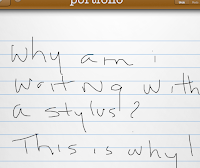
First, if you are a woman and you have any kind of fingernails at all, you will need a stylus. With any kind of protuberance at the end of your finger that blocks your fingerTIP from making full contact with the iPad surface, your writing results will be unacceptable. The screen shot at right of my inking without a stylus gives you a good idea of what the problem is.

Second, a note is meaningless if you can't get it out of the iPad and into some actionable form. This is the challenge with note-taking
applications as a whole and why - Steve Jobs would kick me out of the orchard for
saying this - Microsoft's One Note remains the best note-taking app I've ever used and the standard by which all the others are judged.

Finally, it would be great if a good note-taking application also offered good inking features.

Most inking apps make a big deal out of offering different pen styles, different colors and line weights. That's important if you are drawing, but if you are note taking - that's not the higher priority. So if that's all they had to offer, I didn't consider them. Some of the many apps out there with inking capabilities are designed to let you express yourself more personally by handwriting your emails, or sticky notes. And I didn't consider those for this purpose either.

This narrowed my field down to four: Inkiness, Notify, SmartNote and Penultimate.

I had great hopes for Inkiness ($3.99) which I found through the Evernote Trunk - a collection of add-ons or affiliate apps that extend the functionality of Evernote. I don't think of Evernote as a note taking tool, but it is by-far the best tool for organizing information and keeping it tagged and accessible. The Inkiness app is lean - no vast selection of the design of the paper I am writing or drawing on, limited ink color choices and only three line weights are offered - fine, medium and broad - common fountain pen nib options. One nice feature is being able to select the way the way your fingertip or stylus will position on the surface both in terms of proximity to the virtual nib and also angle. So if you are right or left handed you can make adjustments to improve the accuracy and appearance of your notes.
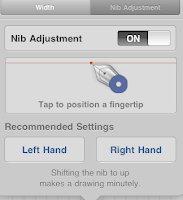
Still you are forced to write HUGE. It seems that the stylus makes this unavoidable, no matter what line weight or nib selection you make. Inkiness does seemlessly transfer to Evernote, as well as Twitter (although why you would want to I haven't figured out yet), to email, your photo gallery or to the clipboard.

There are several real problems - or maybe it's more fair to call them limitations - with Inkiness. First, no wrist-safe zone. You really need this with the iPad or you have a lot of unwanted marks and distractions. Second, each note is one page. There is no note
book or file structure within the app itself. So if you are taking notes during a meeting and they spill over to a second or third page, those are all lose pages with no way to append them. If you use Evernote, there is a merge function, but if not you are on your own.

Bottom Line: Evernote users may put up with the shortfalls to the get the integrations, but anyone else will likely find this app is quite ready for prime time yet. I will, however, watch for updates.

Notify ($.99) is another Evernote Trunk find. This is a more full-feature
d program and it's big selling point is that you can import web pages, documents, pdfs and annotate them with your own handwriting and drawings and then export them back out - including to Evernote, Google Docs, Dropbox and Box.net. This is a useful program for annotating pdfs and web pages. It's got a wrist-safe area and a full array of pen styles, widths and even different colored highlighters. You can change your paper style (lined, legal, white, yellow) if that's a big driver for you.

One- and two-fingered operations let you draw boxes and circles. There are fairly thorough object manipulations available. Type handling also has some neat features like the ability to calculate simple formulas and to translate text into dozens of different languages.

You do have the ability to create tags for your notes within Notify and to perform a full text search if your notebook gets sizable.

Bottom Line: A lot of features, a good tool for annotating. Navigation confused me a little and I am still trying to figure out how to close a note.

SmartNote ($2.99). In my previous look at Note-taking apps, I found SmartNote to be the all around best product for note taking. This remains true and it will allow you to integrate inking with typing. SmartNote lets you create as many notebooks as you want so you can keep notes organized by topic (this would be a big plus for students). You can bookmark pages and notes to make them easy to find later, add audio recordings and use an array of pre-built widgets to add drawings, graphs, musical notations and more to your notes.

For students - especially those studying music, science or math - SmartNote is a must-have app. For business, there are a few challenges. The handwriting appearance is jaggy - even with a stylus - but gets better with experience. You only have two things to do with your notes/notebooks when you need to integrate them with other applications - Export a PDF or Email a page - which comes over as a .png file. Exporting a PDF gives you several good options: export the entire notebook or just specific pages or page range, include the notebook background or not, change the image quality to make the file smaller if you need it to be and email it or save it in a documents folder.

Your recordings can be emailed separately, but if you email the note any associated recordings do not come along with it.

Bottom Line: smartNote does a lot, but I started out looking for a quick way to take notes on the go. This is not smartNote's forte. Still if you're looking for a good note-taking program that you can work in 75% of the time, this may be it.
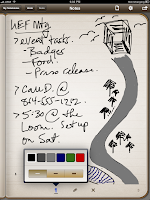
Penultimate ($3.99). This app advertises itself as the best handwriting note app in the App Store. Although it seems like you are paying more for the app that does the least, it's more that you are paying more for the app that focuses on doing one thing. The interface is simplicity - choose one of three line widths and six colors and start writing (or doodling, if the artistic spirit moves you). There are no boxes to get in the way, no questions of whether to type (you can't) or write. The fewer moving parts, the less to get in the way of the single purpose - taking some quick notes.

Bottom Line: It's odd as I look at my evaluation, but this is my favorite app for this purpose. Don't get me wrong: This is not an app for writing. You won't want to take copious notes in long meetings or lectures. And the export options are limited to email, which fails on one of the two things I was looking for - something to integrate with Evernote. So it seems unlikely that this should be my favorite. But its simplicity and ability to do the one thing well won me over. It looks and feels like exactly what I was looking for - a pen and a notebook.

Any of these four programs will fill the handwriting and note-taking role - some with more features, some with less. What those who like to write know is that ultimately it comes down to intangibles - the weight of a fine pen in your hand, the feel of the nib on quality paper. And so it does with these apps. If it feels right, go with it.
--------
Portfolio provides services to small businesses in communication, technology and training. Want to integrate iPads and iPhones into your business but worried about communication with your enterprise and legacy servers and software? Contact us for a free consultation about how to help your workforce be more mobile and more productive.

We believe in sharing information that assists small businesses to be more efficient, productive, and profitable. So we pass on information for free through our blog, Facebook Page, Twitter account and email newsletter. Don't miss a beat and subscribe to the newsletter. You'll get some great information and special offers!

Tuesday, September 21, 2010

Ideas in a vacuum

By Laura Haight

What turns an idea from the spark of fleeting inspiration to a tangible service or product?

Are you the kind of person who churns out a lot of ideas and then bounces them off others? What if an idea just lives in your head?

For many new entrepreneurs, work is done on the phone, on the road, in a home office. Single-person consultancies or one- and two-person businesses lack the whiteboards, projectors, conference tables, mind mapping and brainstorming infrastructure of the corporate world.

An idea is defined as "any conception existing in the mind as a result of mental understanding, awareness, or activity." So what takes an idea from existing in the mind to an actionable plan, product or business?

In my experience, it's the process of having it kicked around by others. Throw it on the table and get feedback good and bad from others with experience, or even those who can bring a fresh perspective. In the newspaper business, often the best feedback came from those who looked at ideas from a reader's perspective, not a journalist's.

Ideas are like children. To thrive, they need nurturing and caring. But they also need discipline and critical appraisals. They need challenges to overcome and goals to attain.

For a small or one-person business, the ability to kick ideas around, to help shape them with others' ideas and experiences, to benefit from what-if scenarios proposed by people who have "been there, done that", leaves a big innovation void.

Don't let your ideas die for lack of water and sunlight. Here are some options:
  • Create an advisory board for your business. This might be comprised of friends or associates, but it should be a group that will fairly and honestly evaluate your ideas and proposals and offer impartial and honest insights. You don't want a bunch of "yes-sers".
  • Set up an informal focus group for an idea that has a specific target audience. Large businesses and marketing companies do this all the time - and often at considerable expense. But it doesn't have to be costly. If your idea is for a product that would appeal to families or parents, for example, you can post questions on parenting websites and ask for feedback. Or post an invite at your church or school PTA and invite four or five people to sit down and give you informal responses to your idea. People like to be asked their opinions. Your challenge is to weigh individual opinions against individual biases. Try to find people who don't know you - that way their opinions won't be influenced by their personal feelings. Remember, just because one person says an idea doesn't work, doesn't make it a bad idea. Look for the useful information and inform your decisions with it.
  • Find a networking group of like-minded entrepreneurs and experts and use it as a sounding board/brainstorming group. Chances are there are many others in the same position you are.
Some things to beware of:
  • In a corporate environment, you are all on the same team. In an entrepreneurial environment - to some extent it is everyone for themselves. Be wary of disclosing too much about your idea.
  • If you set up a board of advisors, you may want to ask each board member to sign a non-disclosure agreement. There are many available online (here's one), but you should always make sure to have any legal documents vetted by your attorney. The version I've posted here is a sample of what's available, but has not been vetted.
  • Our opinions are informed by our experiences and biases. So you must take them with a grain of salt. Remember, ultimately it's your business and it's your decision.
Ideas rattling around in the heads of people just like you were the start of every great movement, product, service or initiative that has every occurred. What made them great was that they were acted upon.

What's your great idea?
-----------
Like the concept of an ideas group? I'd like to know if there's potential to start something locally in the Upstate of SC or potentially virtually to bring in people from around the region. Please comment and give me your ideas!


Tuesday, August 31, 2010

What's the peg? Keeping it interesting


By Laura Haight
On the wall in my office there's a map showing newspapers and periodicals in a portion of the country based on data from the 1880 Census. It is actually one of the first infographics with red triangles showing dailies, blue dots showing weeklies, squares showing periodicals and different colors denoting the number of each in the area. There is hardly a town not covered with dots, triangles and circles.

Today, there are many fewer formal publications and yet probably even more communication channels when one considers blogs, websites, tweeters and more. Nonetheless, when a group, business or non-profit wants to get information out they turn to the established media: newspapers, television stations, magazines and, perhaps, established mainstream blogs.

Often, they find they don't get the response they expected. So here are five tips to get your press release or information noticed.

1. Have a news peg. Whether it is good or bad for the future of journalism, it is still a fact that news outlets need reasons to be interested in things. What is the news peg for your release? Is it a meeting that you are having, an event that's coming up, an anniversary, a fund-raiser? Make sure you make it clear that there is a timeliness to your request for coverage. Be clear in explaining why other people should be interested in your event, not just why you find it interesting.

2. Tell a story. When I was a newspaper editor, I told reporters all the time to think like readers. Try to remember that they don't know what you are talking about and tell them a story that will interest them, inform them, and involve them. Too often organizations write releases that assume some level of knowledge about the group and its mission. Assume you have just met someone who has just moved to your town and they know absolutely nothing about your group. Now tell them a story. Make it interesting to hold their attention and compelling to capture their imagination. But also make it thorough. Not sure if your press release meets this test? Give it to someone not involved in your group to read and gauge their reaction.

3. Think like a reporter. I say this with all the love and respect I have from 35 years in newspapers: reporters are lazy. If you want to get something published, you will want it to be as complete as humanly possible. If you try to send the news outlet to other places (check our website for more information), there's a good chance that will backfire and you will end up in the "circular file." No matter what embellishments you make, all good news writing still covers the five basics - who, what, when, where and why. Answer those questions with clarity and brevity and you will have a far better chance at attracting a news outlet's interest.

4. Know what you want. In a previous lifetime, newspapers received press releases and an editor would look them over to see if there was anything newsworthy enough for coverage. A second tier that was not deemed worth a reporter's time but still might be a decent "blurb" or calendar item would be given to a clerk to write up. A third tier would be relegated to the previously mentioned circular file. Today, automated self-service systems fill the role of clerks - and even sometimes editors. Most news outlets have an online system for submitting information. Normally, this is run "as is" in various calendars or specialty listings depending on the selections you make when you enter them. If you send a press release hoping for coverage, but you'd be happy to have a listing, then you need to submit the information yourself. Yes, you are doing twice the work. If the outlet decides not to cover your event, it is highly unlikely your information will be passed on to anyone else for inclusion in a calendar or listing.

Another critical piece is to think like today's journalists will be thinking. If your event or story has not only a compelling subject, but also great visuals, mention that in your press release. Print news outlets are thinking video, audio and multimedia, so you have a better chance of getting coverage if you can provide some suggestions for compelling visuals as well as a good story.

5. Personal follow up. Even though it seems like newspapers and magazines are smaller than ever before, they are receiving a great deal more information than they ever did. Much of it goes online where the costs of publishing a story are significantly lower than the cost of ink on paper. But with all the information coming over the transom, yours can easily be misplaced, go unread, get ignored. Don't underestimate the value of a personal follow up. If you know someone at the news outlet, all the better. If you don't, go to the website and find an editor's name. If you call them, there's a very good chance you will not get through, but you will have the opportunity to leave a message about the "xyz press event" which may jog someone's memory.

Although there are more media outlets and blogs than ever before, you still can't minimize the value of publicity in a major news outlet. A brief item in a general interest newspaper is worth a lengthy piece on dozens of blogs combined. And since all news outlets also operate online sites, blogs and special interest microsites, you have a good chance of hitting a fairly wide audience.

It all starts with how well your press release does its job.


Sunday, August 15, 2010

Get more out of your inbox

If you use a computer, you probably have dozens of software programs you don't even remember installing. But for most of us, our computing life is defined by three to four programs. I don't know what your third and fourth programs are, but I know the first two: email and your browser.

Regardless of age, station, profession or computing facility, email is the application almost all of us are familiar with and yet it is one of the most misused.

Email is a call to action. In business, email is used to make assignments, share and collaborate on documents, schedule meetings and garner consensus. And yet most of us treat it more like a giant junk drawer that we rummage through when trying to find that eyeglass screwdriver we threw in there last Thanksgiving.

Even though there are many better applications for many of these functions, most people are comfortable with email. So here are some tips on how to be a better email user and get more out of your inbox.

1. Make sure your email messages contain actionable subject lines. Cultivate this among the people you most often exchange email with. For example, if an email requires a response use a prefix in the subject line of RESPONSE REQUIRED followed by a specific subject. If email is only informational put an INFORMATION ONLY prefix on your subject. Whatever language you choose, make sure you are consistent and honest. If you overstate the urgency of email, your recipients will come not to trust your tagging. And truly urgent mail may be ignored.

2. Get the clutter out of your life. I confess that I have probably 3-5 services that I signed up at one point or another that send me emails every day. And every day I delete them without reading. Rather than clutter your inbox with emails you will never read - get to know rules. Rules are relatively easy to write and most email applications from Outlook to Apple Mail support them to some degree. Outlook gives you the most flexibility in customizing your rules.

3. Most mail apps also let you set up organizational attributes - like categories and color coding. Organize your categories/colors to suit your particular business or preferred way to work: set up categories for specific clients so you can easily find email that relates to a critical account; set different categories for different levels of urgency or response; or different categories for different business areas.

4. Use follow up flags on your email. These are great tools and, in Outlook, let you set up a custom reminder on an email that will pop up a message to remind you to do something related with that email. If you receive an email spelling out something you have to do by a deadline that is three weeks away, chances are you either assigned it to someone or you jotted down some note and then immediately forgot it. Set a flag to pop up four days before the task is due to remind you and pull up the email from the depths of your inbox where it has fallen.

5. Delete things once you've acted on them. Our inboxes are full of completed items, read email, things we looked at and no longer need. Delete them immediately to keep your inbox clear of those items that no longer require anything from you.

6. Email is really not intended to be a storage platform and many businesses establish quotas on mail to prevent that from occurring. Nonetheless, some email should be saved and others should be deleted. Have the wisdom to know the difference. Set up folders based on a file structure you understand - by client, by task, by sender, by subject - and whether you do it automatically with rules or do it manually, file the mail you need to keep. If you are a sales person, you may want to save emails from clients authorizing specific purchases. But you may not need the actual sales order if that has already been created in your main business system.

7. Turn mail into the action items they really are. In Outlook, by clicking on an email message you can drop it on top of tasks or the calendar icon to turn it into an assignment or a meeting. If you're a Mac user and you're using Apple Mail, if a message contains information that is identified as an appointment, you can click alongside of it and a drop down menu will appear that lets you add it to your iCal. If you use a GTD (getting things done) program - like Things or Evernote - you may be able to drag the email
message over top of the icon to create a new to-do item.

8. Don't spend your life in your email - it is far to easy to get distracted. Schedule times when each day when you'll devote yourself to working through email - assigning tasks, scheduling meetings, making assignments and filing important information.

9. When you shut it down for the day, your inbox should have 10-20 items at most.


10. I can hear you telling me that's impossible. So I ask you: Have you ever lost all your email? Mistakenly deleted things, your IT department did an upgrade and you lost your inbox, your mail file was corrupted? Initially, you panicked, but it didn't take long to just move on. The world did not come to an end.

It is possible to clear the clutter out of your work life and make your mail work for you - not the other way around.
-----
Want to learn more about how to save time for you and your employees with the tools you already have? Contact Portfolio to discuss custom training options.

Friday, August 13, 2010

What's the best way to talk to your customers?

Ah, the good old days. You called the newspaper, placed an ad, sent them a check for a couple of thousand dollars and waited for the calls/customers to flow in.

But things have certainly changed and now you are just as likely to use an array of personal communication methods and social networking tools to reach out to clients.

There is definitely a trend toward email newsletters and Portfolio, in fact, will be launching one next month. Newsletters should offer more than sales pitches, however. Good content that helps people solve problems, learn something new, be more productive or efficient are key elements that will ultimately lead them to see you as an expert who helps that. That customer relationship is what eventually will turn into sales.

Writing, however, seems to be a daunting process for many people. Knowing your subject completely does not always translate into being able to write something compelling about it - in fact, the opposite is often true. This may turn some companies away from the idea of doing a newsletter.

Don't let it. There are a number of talented freelance services out there - of course, Portfolio is one of them -- that can help you articulate your message and put together an attractive and compelling newsletter.

Maybe a newsletter isn't your thing, though. There are a lot of methods out there. We'd love to know how you do it. What works best and why. Take two seconds and answer this one-question poll. Comments to this post about how you best communicate are welcome.

Saturday, August 7, 2010

Working the iPad: Note-taking apps

When meetings rule your life a good note taking application is critical. One of Microsoft's best efforts was OneNote - a terrific note taking app that can turn your meeting notes easily into tasks, assignments, contact information, webpage bookmarks, and searchable time stamped content.

Armed with my iPad, I'm trying to answer the question of whether or not the device can be a business tool. Step one is a great note taking app.

There are many for the iPad, I tested four: Notepad Pro, Notebooks, smartNote and SoundPaper.

In several cases, the developers seem to have focused more on the form than the function. And while there is no application that pulls it all together, each has particular strengths - and weaknesses. All of them allow you to transfer notes and audio - either by email as a pdf or text file or, in some cases, via Wi-Fi sharing. Another important aspect is price. The iPhone app world got us used to 99 cent applications. But the iPad apps are considerably pricier, so you're less likely to buy something just to see if you like it.

Here's how they stack up:

Notepad Pro ($1.99) is the least impressive. It is a straightforward note program ands only slightly expands on the toolset of the default note program that comes with the OS. The program lets you change the paper design and will accept drawing and audio recording. While you can change the color and line weight of the drawing tool you are stuck with a huge - maybe 24 pt - text size and no way to change it,

You can email the file as a pdf and audio if you need to get it out of the iPad and into your desktop.

The most frustrating thing about the app, however, was that the page did not scroll up. So with the keyboard displayed you could not see what you were typing once you got about halfway down the page.

Notebooks ($8.99) is an expensive offering but it also offers some unique features. What it does not offer is audio - the only one of the reviewed apps that doesn't. Although, future versions may include audio support. There is also no capability for adding drawings. What Notebooks does offer is by far the best organizational function.
With Notebooks you can create books and pages within those books. You can also nest books inside books, creating a familiar hierarchal system. You can change the font and type size you are working in, and the application makes it easy to move files to other folders.

You can easily create files from the clipboard or from the contents of emails or attachments. One of the coolest features is the ability to turn your page into a task list and add in due dates. A nice enhancement would be a task calendar view.

Notebooks is a very useful app for the notetaker who primarily wants typed in notes kept very well organized.

smartNote ($2.99) has just about everything you could look for in a note taking app. You can create separate notebooks with customized skins. There are paper temp
lates that run the gamut from lined white paper to a half court basketball diagram. Widgets let you add elements like push pins, bullets, sticky notes and more. There's even a widget that adds a web page to your notebook that can either remain dynamic or can be converted to an image.

Pens and text size can be customized both in size and color. And there are some nest little extras, like a wrist rest zone that the user can define that makes that a dead zone so you don't accidentally delete or change information in your note.

There is support for audio recording, bookmarking and full text search.

For $2.99, this is a full featured program that provides good value.

SoundPaper ($4.99) is the application I wrote this article on. It is a fairly basic app but has one feature that students, journalists and others will find hard to resist. Notes and audio are tightly integrated so if you click on a word or phrase in your notes, the audio recording will automatically move to that area in the timecode.

No more hunting around on recordings trying to find that great quote, I used this feature during a recent interview for a magazine piece and it was a huge help.

SoundPaper also supports drawing and full text search.

So what is the best app? The answer really depends on what kind of note taker you are and what you want to do with your notes after the fact. There is still room for improvement. Some of the things I'd like to see would be automatic recognition of hyperlinks, phone numbers and email addresses and the ability to automatically add those to your default contact application. Integration with some of the most popular to-do programs would be a nice addition, since so much of what happens in business meetings is the creation and assignment of tasks.

For me, I'll have to keep two - SoundPaper for the recording capabilities and smartNotes for everything else.

Thursday, July 29, 2010

New workers, new language


How often do you wish you had some of the advantages of a larger business or a big corporation?

A dedicated HR department, a marketing staff, IT experts at the ready? Thanks to crowdsourcing, you can. Leveraging the availability of a small army of experts around the world in every area and the technology of cloud computing, companies are bringing this expertise to bear for every small business with a laptop and an internet connection.

It's another form of outsourcing, freelancing or permalancing - the new way to work and to staff our businesses that is developing a growing following. So here are some terms to learn:

Crowdsourcing: Bringing a group of experts from all over the world together to perform a set of tasks via an internet aggregator. Some examples:
-- myGengo is a distributed network of translators. Need a white paper translated into Mandarin? Submit it to the website for an instant quote and wake up to a translated document.
-- GetSatisfaction is a customer-service platform that integrates to everything from an iphone to a company website and allows users of a product or service to provide customer support for others with questions.
-- Experts Exchange is a collective resource for technology support. You can go there to look for answers to a question or post a specific question on technologies ranging from desktop support to high-end programming. If you are a technologist, you can sign up to be an expert and have a list of open issues in your area of expertise emailed to you daily. The more you resolve, the more points you get. Points allow you to create your own "site" on the ExpertsExchange site and develop customer relationships, which in theory can translate into business.

Freelancing: The term freelancing was coined in medieval times to identify mercenaries who would sell their services to any realm. Thus they were free - lancers. The term is used widely to describe people who have solo businesses although most often to those in design and communication. The idea - and the law - behind freelancing is that the expert is free to accept or decline any position. They use their own equipment, they work on their own time, they do things their own way.

Contractors: Long-term hires, usually through an agency. Contractors are usually not entitled to benefits but may work at the company, using company equipment and interacting - even managing - company employees. Typically they are hired on a project basis for a limited term. But that term can be several years, depending on the project's completion timeline.

Permalancing: Now a new term is starting to be heard that describes a new way of working. Permalancing describes what is happening in larger companies across the country. Freelancers are being utilized to do tasks once associated with permanent staff - bookkeeping, customer service, marketing, communications, etc. In most cases, the definition of a permalancer is someone who falls somewhere between temporary employee and staffer.

The challenge is in not blurring the line that delineates the difference between freelancer and employee.

If outsourcing, permalancing and freelancing for corporations and larger businesses continues, laws may be changed to recognize that a new way to work is emerging. For companies the advantage is in a pay-as-you-go model that is even more attractive now when so many top-notch people are marketing their services. For the free- or perma-lancer, it's the opportunity to control their own work life, to do things that interest them, to fit work into their life rather than life into their work.


Is the day of the full-time employee over? Probably not, but outsourcing - not to cheap foreign labor - but to local experts who are starting small consultancies or freelance shops in your area is a new way to work and get things done. It is bubbling up and its doubtful employers will put a cap on this new type of workforce. For small businesses, it levels the playing field and increases competitiveness without having to grow payroll. The genie is out of the bottle.
----------
Portfolio is a solution provider for small businesses offering expertise from freelance affiliates in communication, technology integration, and software/productivity training. Check us out on Facebook and Twitter or call us for a free consultation at 864-213-6314.


Friday, July 23, 2010

Three things that make Apple different


A few years ago, frustrated with all the time I spent fixing my computers and all the money I spent on new utilities to make them work, I bought an iMac.

I was equally surprised and thrilled to realize that the hype was really true. They actually do just work. Next, I bought a MacBook and a Time Machine/router. Not only did they work; they worked together. I added Mobile Me and synced everything seamlessly and without intervention.

But it wasn't until I bought the iPhone two years ago, that I went from being a very happy user to a convert. Today, I played golf with a gentleman who was learning his way around his first iPhone. "I always said I never wanted an iPhone," he said, "and I've had this for two days and it has changed my life." I completely understand that.

The iPhone changed everything for me. As a technology executive who was also in charge of cell phones for a 500-person business, I was able to consistently replace my cell phone with whatever was new and then roll down my phone to another employee. This was good because no matter how cool they seemed at first, within a few months their warts had been revealed and I was on the march for something better.

The iPhone has never disappointed. Consistently, I find new ways to make my personal and work life easier, more efficient, and - yes - more fun. And, again, they just work.

Adding the iPad this week, I now have an entire Apple orchard in my house and my work.

To me there are three factors that make Apple stand out among so many competitors.

-- People want to use their products. It's not work to work. Go to the Apple store. It is a modern, connected digital nirvana. The associate had a card swipe attachment and a proprietary app on his iPhone. When it came time to check out with my new iPad, he swiped my card on his phone there, emailed my receipt and applied my Apple Care plan to my existing Apple account. It was easy, smooth, efficient and it showed what the technology can do. Our businesses should all be this inviting and look this efficient to our customers.

-- And let's consider customer service. You can argue about the controversy surrounding the Apple antenna issue. But so often companies are quick to make statements, but slow to make amends. Last week, Apple announced they would provide the "bumpers" to all iPhone owners to correct the antenna problem. And, if you happened to have already bought one (like me), you would get a refund. 'How long is that going to take,' I wondered, 'and what kind of paperwork will I have to file?' I spent 30 minutes hunting up my receipts and emails so I would have everything all together. I need not have worried.  Today (one week after the announcement), I received an email from Apple that they had refunded the charge for my bumper. It was already in my bank. That's follow-through we could all strive for in our businesses.

-- Finally, they innovate. There were certainly Apple products that were sub par - the blueberry colored Mac and the Newton come to mind. But that didn't send Apple to the mattresses. They learned from the blueberry Mac and it evolved into the iMac on my desk. And the Newton may very well be the first glimmer of the iPhone/iPad revolution.

Like it or not, Apple is leading the way in computing, producing products that are both reliable and exciting. Businesses could do far worse than find ways to integrate that into our businesses.

Thursday, July 22, 2010

iPad: Tool or toy? Let's find out


Since it's introduction, the iPad has suffered from a bit of an identity crisis. Sure it's a great entertainment device for taking digital content to the next level of mobility. But does it have a place for business?

We're focusing on that with our new iPad. What is it going to do for you as a business person? What apps really make a difference for mobile users? Can it take the place and even improve upon the notebook? Can it satisfy even PC users?

To set up our test, here are a few basics: I have a 32 GB iPad with both WiFi and 3G.. The latter was my biggest decision. I just couldn't decide if I needed the 3G and if it would be worth the money. That will be one of the things we'll learn as we go through this process. 

I am writing this post as a note because I started it at the dentist's office and did not have wifi there. My plan will be not to pay for 3G until I really think I need it. Working on a blog post while in the waiting room did not rise to that level.

The first thing I will say is how I love typing on the keyboard. The feel is terrific but it takes some getting used to. A stray finger and you've got some errant letters. 

Please comment and let me know if there's anything particular you want to know about the iPad. Next up I'll take a look at business related applications for iPhone running on the iPad and how well they work.. Or do you even need them? 

Monday, July 19, 2010

Hire the unemployed and get a tax credit

Everyone I know who is out of work would rather have a job than unemployment. But they need something. Extend unemployment and create tax credits for businesses for each unemployed person a business hires. That addresses the immediate need people have to pay for housing and food, but it clearly says to business that the unemployed are out there because of an economic crisis NOT because of some deficiency on their part.

Businesses that refuse to even consider the unemployed for positions should not get the same tax advantages as those who bring these talented, hardworking and experienced workers back into the fold. Agree? Interested in your thoughts?

Friday, July 16, 2010

Business card scanners for the iPhone: Which app is best?

Digital business cards may be the next big thing (see previous post) but until things shake down and some standard platforms bubble up, the hard copy printed business card is a fact of life.

That said, how do I meld the old-school business card with mobile platforms, smartphones and digital content?

If you've got an iPhone, you have a lot of options. A search on the App Store brings up more than a dozen card readers - some with free or "lite" versions that give you a taste of the app and, they hope, entice you to pop for somewhere between $3 and $10.

So where should you put your money?

First key: You need an iPhone 3GS or iPhone 4 with a higher megapixel camera and a zoom capability. Some apps say you can use an iPhone 3G with a camera accessory, other apps let you import photos taken with a digital camera or scanned. But for real ease of use, have a later version iPhone.

Second key: The quality of the photo YOU take is the single most important determinant of how good the character recognition will be. Good lighting is important (shadows definitely screw up the OCR).

Third key: Boring POCs (Plain Old Cards) work best. Fancy, highly designed glossy cards are more difficult to recognize. Information like the company name in a designed logo is hard to recognize and often doesn't come over. A white business card with clearly printed text (no pictures) on it will be recognized almost 100 percent.

To find out which is best, I downloaded the limited version of five applications and scanned two cards: a glossy card with reverse text and a photo and a plain white card with black text, a logo and clearly defined type. Most scanning applications today do more than just character recognition and exports to your contacts app. Some have online backup, some have card holder libraries, some let you make phone calls or send SMS from links from the business card itself, one can even automatically send your business card and a note to each new contact whose card you import.

But first and foremost you've got to have good character recognition and field organization.

World Card Mobile ($5.99) did a middling job on both cards. On a 1-5 scale based on number of fields recognized and number of characters corrected translated, I give them a 2.5. One puzzling error - it translated all the l's as f's, so Milltown came out Mifftown.

CamCard ($5.99) did slightly better with both cards and has an anti-shake function that waits until the image is stabilized to take the photo - a pretty nifty feature that none of the others had. On OCR alone, I give it a 3.5. Some other features like the card holder, multi-language support, ability to call, text or email directly from the stored business card were all nice touches.

ABBYY ($9.99) was perfect with the standard card and better than most with the glossy, highly designed card. OCR rating alone probably nets it a 4 rating on my scale. ABBYY lets you select what contact fields you want to use and add new contact fields on the fly. It also has multi-language support.

ScanBizCards ($6.99) had the ability to crop the business card to remove some of the extraneous areas and focus more tightly on the data you want recognized. There are also some nice touches like a link-up to LinkedIN, Skype integration, Web sync lets you create an account and backup your business cards online, and a rudimentary CRM function will even remind you to follow up with new contacts. But on the overall OCR test, it came up high (not perfect) on the plain card, but way off on the designed card. An overall rating of 3.5

Card2Contacts ($4.99). This is really a shame because they have some cool functions including a split frame that can let you drag and drop recognized text into the correct fields. But the OCR engine was the worst of them all, recognizing no fields on the glossy card and only a middling job on the plain white card. So overall on OCR alone I gave it a 2.

What's the bottom line? I am torn between the clarity of ABBYY (after all the other features are only helpful if you've got the card accurately read into your system) and the many more mobile features of ScanBizCards. As business gets more mobile, my iPhone and other linked devices like my future iPad, will become my main business tools.

In the final analysis, OCR is the reason why you get an OCR application. So I'm popping for the big bucks - $9.99 - for ABBYY. Have you got another app you like for business cards? We'd like to hear your opinions.

Thursday, July 15, 2010

The S-Word

To the list of words that can be spoken only by their first letter (the F-Word and others) let's add the S-Word: Service.

Quality (the Q-Word) has been declining for the past 30 years: Workmanship is a declining art and pride in doing a good day's work has been largely replaced by either greed or complacency (depending on which end of the pay spectrum you are on).

As quality has declined so has brand loyalty. Price is the driver now. Just because I bought a Maytag washer last time doesn't mean I'll buy one again. I'll buy whatever is cheaper because I perceive them to be all basically of the same quality, same features and same expected lifespan.

With quality and customer loyalty lagging, we now spend a ton of time talking, writing and blogging about how to get customers. We are awash in advice on how to get customers: the five keys to marketing, 10 ways to use your database, 15 keys to social media marketing. In the enumeration of our efforts to find them, less time is spent thinking about how to retain them.

As a consumer of products and services, the answer is customer service - plain and simple. It seems so simple, I am always surprised by how hard it is to find and how excited you get when you do find it. On the rare occasion that a company provides me with what I consider to be outstanding personal service, I become loyal, committed and a passionate advocate. I spread the word to friends and associates, I write nice notes on my Facebook page or blog and generally do everything I can to extol the virtues of the company.

The sad thing is that today's great customer service was really just basic business practices a few decades ago. Companies have trained us to lower expectations: consider cell phones, we now consider it perfectly acceptable that you have dead spots where you phone doesn't work, can only clearly hear every third word of a conversation and that the call may be dropped at any time. That's just the price we pay for convenience. None of us is calling AT&T to complain that we have to bend over the kitchen sink to the south facing window to get enough bars to make a phone call. No. We just accept that that's the way it is.

But shouldn't we - as consumers - expect more? And as business owners, shouldn't we at least try harder to fulfill those expectations?

As a small business, we don't have a ton of money and we certainly don't have a huge staff. But here are a couple of small guidelines to better customer service that we can all follow. They won't break the bank and they will increase loyalty.

1. Be an advocate for your customer, not your company. A customer dealt with fairly and honestly, who's complaint was addressed quickly and without recriminations is worth their weight in gold to you. They will tell their friends and associates, they will be your customer for as long as they need that service and they will hold you up to others as an example. This is grass-roots, word-of-mouth marketing you can't buy.

2. If it costs more to prove you're right than it costs to fix the problem, just fix the problem. Recently, I took issue with a supplier over an order. The order cost me less than $125, so I'm assuming it cost the supplier less than $50 to produce. After a day and half of discussion, a courier pickup, and two separate employees including a senior manager explaining to me why it was "acceptable quality," I finally had to give in. Then they overnight shipped the 20lb box back to me. All in all, this company is out money AND they have aggravated me to the point of looking elsewhere for a supplier. I'm sure the company considers this a win, but by my business ROI calculator it's a definite loss. This company missed a huge chance for a big customer service win with a pretty low price point.

3. Manage expectations; fulfill commitments. What do you want from companies you deal with? For most of us, it's pretty basic - do what you say you're going to do for a fair price that we agree on. Unless you are a fast food restaurant or a hospital, your customers and clients can generally understand if you can't do something "immediately." But if you tell me you can't do it until two weeks from Friday because of previous commitments, then have it done by then. Even though this seems basic, I find a lot of companies - big and small - promise more than they can deliver because they think telling the customer what they want to hear is going to make them happy. What makes customers happy, is getting what they are promised.

4. Be honest. A customer with money to spend and who will pay those bills, is in some ways an easy mark. It is tempting to put them into things they may not really need, to create situations where your services will continue to be required for maintenance, or to recommend things for them that you know they can do themselves or obtain for free. If you've ever had the experience of a company that tells you they won't sell you something more expensive because you only need a $2 part, then you know how quickly you become a rabid fan and loyal customer. Sometimes the sale you don't make is the best advertising you can have.

This is only a 4-item list and everyone knows a list must be 3 or 5, 10 or 15. So please comment, tell us your best customer service tip. If small businesses came together and made a commitment to improving our relationships with customers, maybe we can again feel comfortable saying the S-Word out loud!