Showing posts with label technology. Show all posts

Wednesday, December 22, 2010

Google delays fiber decisions

Communities around the country, including Greenville, have been disappointed by Google's decision to delay announcing the winner of the "free fiber" competition.

Greenville began heavily pitching the woo at Google last spring when the "We are feeling lucky" campaign and website was launched. In March came the Google on Main event where more than 2000 supporters were handed glo-sticks and positioned in Falls River Park to spell out Google.


There is a lot at stake in Google's decision. More than 1,100 communities were vying to be the pilot city for this project. Topeka renamed itself Google and Florida renamed an outlying Island for the search giant. Greenville, however, sits in the top 20 communities by all accounts. 

A fiber network would be roughly 100 times faster than what we have access to today. What will we do with all that speed? It's tempting to think of entertainment options like streaming media and gaming. But that's limiting thinking. Think about medical imaging shared across town or across the world so a specialist in LA can consult on a case in Greenville. Think education opportunities with classrooms wired for mass communications. Think about being able to expand business opportunities far beyond the physical and geographical limitations. 

Part of Google's goal with this project is to see what developers will come up with when they are no longer constrained by bandwidth. That brings new businesses, creative and innovative talent, and cutting edge technology to the area that gets Google's nod.

It will now be early 2011 before we find out what's on Google's mind. But win or lose, the barriers to major technological innovations are getting ready to be overrun with talents, skills, imagination and innovation. We'd better be ready.

Friday, December 3, 2010

Ho Ho Ho, Santa's bringing an iPad

The iPad is a hot item on a lot of holiday gift lists, so if you're giving one or getting one, here are some tips.

1. I would not have thought that the 3G capability was that important, but I bought my iPad with both the wifi and 3G anyway. Some of what I've read recently says skip the 3G. I disagree. I have been amazed how many times I have had to use the 3G. Public wifi is just not as widespread as you would like to think and even if you find yourself in a client office where they have wifi, it may take some effort to get the connection information. That's wasting critical face time with a client while someone scrambles around to find the right connection and passwords. Forget it.

What you can do to save costs is to get the $15 250 mb plan. I know that doesn't sound like much. But since you don't use the 3G that much, you will rarely run up beyond the limit. You can buy more space on the fly from your iPad - or cancel the plan if you want to.

2. The iPad is a remarkably resilient piece of equipment. I carry mine in my purse. I did buy the Apple iPad case - resisting the temptation to purchase fancy leather cases and special padded sleeves to carry the device around it. I also have not put a screen protector on it. Other than brushing off the dog hair and wiping with a damp cloth about once a week, the device requires very little in terms of accoutrements. If you will get freaked out by the constant presence of fingerprints on the screen, the iPad is not for you. You only see them when the device is off!

3. Steve Jobs says the device fails as soon as someone has to reach for a stylus, but depending on what you want to do and what apps you need to use, a stylus is a good idea. They are, however, more expensive than they should be considering that there's not much to them… But it is what it is.

4. What the ipad does require is apps. This is a very personal decision, so if you are giving someone an iPad for Christmas, you'll do well to include an iTunes gift card. Don't worry, most apps are under $5 and a great many are free. How many will you need? That's a very personal thing and it really depends on what you are going to use the iPad for.

If you want some stocking stuffer apps, here are a couple. This is totally subjective and, in general I will steer clear of any app over $7.

News reader: Reeder or Fleedler. Both connect to Google Reader. Feedler has some additional social networking integrations, if you are into that kind of thing. A free version of Feedler has some limitations and banner ads. The full version is $4.99.

Social networking: Flipboard. This great app pulls together twitter, facebook and some customized content channels, via RSS, into a magazine style interface. Instead of meaningless reTweeted links, you see headlines and photos, videos and audio directly in the interface. And the app gives you the ability to comment, reply or reTweet. This app has let me see a lot more of what was being posted than I ever had before. The company has just added content from eight content channels including the Washington Post Magazine, Bon Appetite Magazine, and ABC News to add specialized content. Flipboard is a free app.

Web Conferencing: WebEx, Go To Meeting and Adobe all have an iPad app so you can join a meeting and participate at some level. But if you want to be able to start, run and manage a meeting from your iPad, you will need Fuze Meeting. A one-to-one account is free and the iPad app is free as well.

Books: Ah, the battle between iBooks and Kindle continues. I feel in love with ebooks early on and have a Kindle 1.0. But I love reading books on the ipad and have bought books from iTunes as well as Amazon. But the edge in this area goes to the Kindle for it's sheer accessibility. I keep the Kindle in the bedroom, and I have the app (it's free) on both my iPhone and my iPad. When I launch it on any device, it automatically syncs to the furthest point read on any device. On accessibility and the sheer size of the books available for purchase, Kindle has to be tops in this sector. The iBook is prettier, but unless you're 10 do you really need your book to sing and dance?

Productivity: Apple's commercials show people doing cool things with Pages, Numbers and Keynote. But they are limited in their scope and do not support many of the features of the full app. For example, if you create a presentation on your desktop in Keynote and transfer it to the iPad, you can kiss your speaker notes goodbye. If you only transfer it for presentation purposes, you won't lose the notes but you also can't see them. If you edit it the iPad, it will overwrite the desktop version and your notes are gone. Either way, it's a problem. This is just an example and until I found Office2HD, I was concerned that this could be a barrier to really "working" with the iPad. But Office2Hd makes work possible. It will let you create or edit documents or spreadsheets, including styles, formatting, adding tables, indents, photos and color. On spreadsheets, a full menu of formulas and functions - including database functions - are available. You can connect the app to an idisk, Google Docs, Dropbox, MyDisk, icloud, Box or other WebDav service. And you can save locally or online. Office2HD is $7.99. Generally, that's over the top of my app budget, but this app is worth it.

The Creative Side: We've all got another side. For me, it's the relentless desire to be able to draw. I doodle on everything and struggle to find my inner artist. If you really ARE an artist, you might like Sketchbook from AutoDesk. A large array of brushes, weights, shapes and templates will give you the tools you need to create. But if you are like me you might need some help. I import photos and trace them - then delete the photos and have fun adding color and backgrounds. OK, I guess it is a good thing that I am not trying to make a living with art. But it adds some fun and distraction and is a bargain at 99 cents.

Your app options are vast and once your giftee has opened the iPad, you will be golden anyway!
-------------
Portfolio provides services to small businesses in communication, technology and training. Do you want to integrate iPads and iPhones into your business but worried about communication with your enterprise and legacy servers and software? Contact us for a free consultation about how to help your workforce be more mobile and more productive.

We believe in sharing information that assists small businesses to be more efficient, productive, and profitable. So we pass on information for free through our blog, Facebook PageTwitter account and email newsletter. Don't miss a beat and subscribe to the newsletter. You'll get some great information and special offers!


Friday, October 15, 2010

Working the iPad: Best inking/handwriting applications

By Laura Haight

Since my iPad and I embarked on our journey together, I've tried - really, really tried - to be totally paperless. It's a goal I have championed for years and, in various career incarnations, tried to move toward.

But there are those times and certain situations where my brain and hand just talk to each other and - unbidden and unstoppable - I reach for a pen and a notebook.

My paper notes are usually brief - jot down a phone number or email address, a few keywords or mind joggers, a quick task list.

So, I thought, maybe there's an app for that - an iPad tool to let me handwrite quick notes and export them to other tools. Many of the note-taking applications that I experimented with (see Working the iPad: Best Note-Taking Applications) had a component that allowed inking/handwriting, so I started there.

Here are the guidelines:
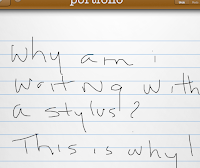
First, if you are a woman and you have any kind of fingernails at all, you will need a stylus. With any kind of protuberance at the end of your finger that blocks your fingerTIP from making full contact with the iPad surface, your writing results will be unacceptable. The screen shot at right of my inking without a stylus gives you a good idea of what the problem is.

Second, a note is meaningless if you can't get it out of the iPad and into some actionable form. This is the challenge with note-taking
applications as a whole and why - Steve Jobs would kick me out of the orchard for
saying this - Microsoft's One Note remains the best note-taking app I've ever used and the standard by which all the others are judged.

Finally, it would be great if a good note-taking application also offered good inking features.

Most inking apps make a big deal out of offering different pen styles, different colors and line weights. That's important if you are drawing, but if you are note taking - that's not the higher priority. So if that's all they had to offer, I didn't consider them. Some of the many apps out there with inking capabilities are designed to let you express yourself more personally by handwriting your emails, or sticky notes. And I didn't consider those for this purpose either.

This narrowed my field down to four: Inkiness, Notify, SmartNote and Penultimate.

I had great hopes for Inkiness ($3.99) which I found through the Evernote Trunk - a collection of add-ons or affiliate apps that extend the functionality of Evernote. I don't think of Evernote as a note taking tool, but it is by-far the best tool for organizing information and keeping it tagged and accessible. The Inkiness app is lean - no vast selection of the design of the paper I am writing or drawing on, limited ink color choices and only three line weights are offered - fine, medium and broad - common fountain pen nib options. One nice feature is being able to select the way the way your fingertip or stylus will position on the surface both in terms of proximity to the virtual nib and also angle. So if you are right or left handed you can make adjustments to improve the accuracy and appearance of your notes.
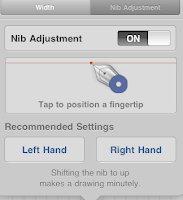
Still you are forced to write HUGE. It seems that the stylus makes this unavoidable, no matter what line weight or nib selection you make. Inkiness does seemlessly transfer to Evernote, as well as Twitter (although why you would want to I haven't figured out yet), to email, your photo gallery or to the clipboard.

There are several real problems - or maybe it's more fair to call them limitations - with Inkiness. First, no wrist-safe zone. You really need this with the iPad or you have a lot of unwanted marks and distractions. Second, each note is one page. There is no note
book or file structure within the app itself. So if you are taking notes during a meeting and they spill over to a second or third page, those are all lose pages with no way to append them. If you use Evernote, there is a merge function, but if not you are on your own.

Bottom Line: Evernote users may put up with the shortfalls to the get the integrations, but anyone else will likely find this app is quite ready for prime time yet. I will, however, watch for updates.

Notify ($.99) is another Evernote Trunk find. This is a more full-feature
d program and it's big selling point is that you can import web pages, documents, pdfs and annotate them with your own handwriting and drawings and then export them back out - including to Evernote, Google Docs, Dropbox and Box.net. This is a useful program for annotating pdfs and web pages. It's got a wrist-safe area and a full array of pen styles, widths and even different colored highlighters. You can change your paper style (lined, legal, white, yellow) if that's a big driver for you.

One- and two-fingered operations let you draw boxes and circles. There are fairly thorough object manipulations available. Type handling also has some neat features like the ability to calculate simple formulas and to translate text into dozens of different languages.

You do have the ability to create tags for your notes within Notify and to perform a full text search if your notebook gets sizable.

Bottom Line: A lot of features, a good tool for annotating. Navigation confused me a little and I am still trying to figure out how to close a note.

SmartNote ($2.99). In my previous look at Note-taking apps, I found SmartNote to be the all around best product for note taking. This remains true and it will allow you to integrate inking with typing. SmartNote lets you create as many notebooks as you want so you can keep notes organized by topic (this would be a big plus for students). You can bookmark pages and notes to make them easy to find later, add audio recordings and use an array of pre-built widgets to add drawings, graphs, musical notations and more to your notes.

For students - especially those studying music, science or math - SmartNote is a must-have app. For business, there are a few challenges. The handwriting appearance is jaggy - even with a stylus - but gets better with experience. You only have two things to do with your notes/notebooks when you need to integrate them with other applications - Export a PDF or Email a page - which comes over as a .png file. Exporting a PDF gives you several good options: export the entire notebook or just specific pages or page range, include the notebook background or not, change the image quality to make the file smaller if you need it to be and email it or save it in a documents folder.

Your recordings can be emailed separately, but if you email the note any associated recordings do not come along with it.

Bottom Line: smartNote does a lot, but I started out looking for a quick way to take notes on the go. This is not smartNote's forte. Still if you're looking for a good note-taking program that you can work in 75% of the time, this may be it.
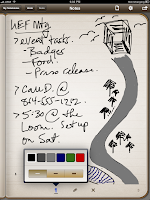
Penultimate ($3.99). This app advertises itself as the best handwriting note app in the App Store. Although it seems like you are paying more for the app that does the least, it's more that you are paying more for the app that focuses on doing one thing. The interface is simplicity - choose one of three line widths and six colors and start writing (or doodling, if the artistic spirit moves you). There are no boxes to get in the way, no questions of whether to type (you can't) or write. The fewer moving parts, the less to get in the way of the single purpose - taking some quick notes.

Bottom Line: It's odd as I look at my evaluation, but this is my favorite app for this purpose. Don't get me wrong: This is not an app for writing. You won't want to take copious notes in long meetings or lectures. And the export options are limited to email, which fails on one of the two things I was looking for - something to integrate with Evernote. So it seems unlikely that this should be my favorite. But its simplicity and ability to do the one thing well won me over. It looks and feels like exactly what I was looking for - a pen and a notebook.

Any of these four programs will fill the handwriting and note-taking role - some with more features, some with less. What those who like to write know is that ultimately it comes down to intangibles - the weight of a fine pen in your hand, the feel of the nib on quality paper. And so it does with these apps. If it feels right, go with it.
--------
Portfolio provides services to small businesses in communication, technology and training. Want to integrate iPads and iPhones into your business but worried about communication with your enterprise and legacy servers and software? Contact us for a free consultation about how to help your workforce be more mobile and more productive.

We believe in sharing information that assists small businesses to be more efficient, productive, and profitable. So we pass on information for free through our blog, Facebook Page, Twitter account and email newsletter. Don't miss a beat and subscribe to the newsletter. You'll get some great information and special offers!

Friday, September 3, 2010

An iPad app to flip over

By Laura Haight

If you've every labored through lengthy lists of Twitter and Facebook posts looking for nuggets of interesting information. Or waded through retweeted link after retweeted link without ever clicking through. Then Flipboard is the app you may have been waiting for.

It's easy to say Flipboard is an aggregator of content, but it is so much more. Flipboard turns the often dry, 140-character post, links and retweets into a magazine style format.


Flipboard starts with 9 content channels on its main page - Facebook can be one, Twitter another - and there are a number of pre-packaged subject-matter channels (like tech or media) as well as individual publications like Slate, Fast Company or USA Today.


For posted links, Flipboard displays the actual headline, artwork and some content. The poster is listed in a byline-like format. If you want to view the entire post, you can expand it to see the entire web page but within the Flipboard app. Although the app could be improved by enabling posting to Twitter from Facebook and vice versa, right now it enables you to retweet or repost to the same channel from the app. You can also add comments or view existing comments, without every leaving the app or the screen its on.

Posts are displayed chronologically and, at least so far, I haven't seen anything from Farmville or Mafia Wars so I think it skips the Facebook game posts.

In the five days I've had this app, I have found some real gems in the links that pour over the transom each day. Many of these, I know I would never have gone to look at from the normal Twitter/Facebook interface.

Flipboard is free and, unfortunately, right now is only on the iPad.
-------
I recently did a presentation for a local business group on getting started with social media for small businesses. Are you using Twitter, Facebook, LinkedIn and other tools for your business? What tools do you use to aggregate the information? If you're an expert you can definitely help others; if you are not, Portfolio may be able to help you. Let's start the conversation.

Sunday, August 15, 2010

Get more out of your inbox

If you use a computer, you probably have dozens of software programs you don't even remember installing. But for most of us, our computing life is defined by three to four programs. I don't know what your third and fourth programs are, but I know the first two: email and your browser.

Regardless of age, station, profession or computing facility, email is the application almost all of us are familiar with and yet it is one of the most misused.

Email is a call to action. In business, email is used to make assignments, share and collaborate on documents, schedule meetings and garner consensus. And yet most of us treat it more like a giant junk drawer that we rummage through when trying to find that eyeglass screwdriver we threw in there last Thanksgiving.

Even though there are many better applications for many of these functions, most people are comfortable with email. So here are some tips on how to be a better email user and get more out of your inbox.

1. Make sure your email messages contain actionable subject lines. Cultivate this among the people you most often exchange email with. For example, if an email requires a response use a prefix in the subject line of RESPONSE REQUIRED followed by a specific subject. If email is only informational put an INFORMATION ONLY prefix on your subject. Whatever language you choose, make sure you are consistent and honest. If you overstate the urgency of email, your recipients will come not to trust your tagging. And truly urgent mail may be ignored.

2. Get the clutter out of your life. I confess that I have probably 3-5 services that I signed up at one point or another that send me emails every day. And every day I delete them without reading. Rather than clutter your inbox with emails you will never read - get to know rules. Rules are relatively easy to write and most email applications from Outlook to Apple Mail support them to some degree. Outlook gives you the most flexibility in customizing your rules.

3. Most mail apps also let you set up organizational attributes - like categories and color coding. Organize your categories/colors to suit your particular business or preferred way to work: set up categories for specific clients so you can easily find email that relates to a critical account; set different categories for different levels of urgency or response; or different categories for different business areas.

4. Use follow up flags on your email. These are great tools and, in Outlook, let you set up a custom reminder on an email that will pop up a message to remind you to do something related with that email. If you receive an email spelling out something you have to do by a deadline that is three weeks away, chances are you either assigned it to someone or you jotted down some note and then immediately forgot it. Set a flag to pop up four days before the task is due to remind you and pull up the email from the depths of your inbox where it has fallen.

5. Delete things once you've acted on them. Our inboxes are full of completed items, read email, things we looked at and no longer need. Delete them immediately to keep your inbox clear of those items that no longer require anything from you.

6. Email is really not intended to be a storage platform and many businesses establish quotas on mail to prevent that from occurring. Nonetheless, some email should be saved and others should be deleted. Have the wisdom to know the difference. Set up folders based on a file structure you understand - by client, by task, by sender, by subject - and whether you do it automatically with rules or do it manually, file the mail you need to keep. If you are a sales person, you may want to save emails from clients authorizing specific purchases. But you may not need the actual sales order if that has already been created in your main business system.

7. Turn mail into the action items they really are. In Outlook, by clicking on an email message you can drop it on top of tasks or the calendar icon to turn it into an assignment or a meeting. If you're a Mac user and you're using Apple Mail, if a message contains information that is identified as an appointment, you can click alongside of it and a drop down menu will appear that lets you add it to your iCal. If you use a GTD (getting things done) program - like Things or Evernote - you may be able to drag the email
message over top of the icon to create a new to-do item.

8. Don't spend your life in your email - it is far to easy to get distracted. Schedule times when each day when you'll devote yourself to working through email - assigning tasks, scheduling meetings, making assignments and filing important information.

9. When you shut it down for the day, your inbox should have 10-20 items at most.


10. I can hear you telling me that's impossible. So I ask you: Have you ever lost all your email? Mistakenly deleted things, your IT department did an upgrade and you lost your inbox, your mail file was corrupted? Initially, you panicked, but it didn't take long to just move on. The world did not come to an end.

It is possible to clear the clutter out of your work life and make your mail work for you - not the other way around.
-----
Want to learn more about how to save time for you and your employees with the tools you already have? Contact Portfolio to discuss custom training options.

Monday, July 26, 2010

Take a screenshot on the iPhone or iPad

iPhone/iPad tip: Ever want to take a screenshot of something on your device? Hold down the Home key and press the power button at the top of the device. The screen will flash and your screenshot will be saved in your photo gallery. If you have a printing program, you can print from that. Or if you're doing presentation on iPad, you can pull it into your Keynote file or Pages doc.

Friday, July 23, 2010

Three things that make Apple different


A few years ago, frustrated with all the time I spent fixing my computers and all the money I spent on new utilities to make them work, I bought an iMac.

I was equally surprised and thrilled to realize that the hype was really true. They actually do just work. Next, I bought a MacBook and a Time Machine/router. Not only did they work; they worked together. I added Mobile Me and synced everything seamlessly and without intervention.

But it wasn't until I bought the iPhone two years ago, that I went from being a very happy user to a convert. Today, I played golf with a gentleman who was learning his way around his first iPhone. "I always said I never wanted an iPhone," he said, "and I've had this for two days and it has changed my life." I completely understand that.

The iPhone changed everything for me. As a technology executive who was also in charge of cell phones for a 500-person business, I was able to consistently replace my cell phone with whatever was new and then roll down my phone to another employee. This was good because no matter how cool they seemed at first, within a few months their warts had been revealed and I was on the march for something better.

The iPhone has never disappointed. Consistently, I find new ways to make my personal and work life easier, more efficient, and - yes - more fun. And, again, they just work.

Adding the iPad this week, I now have an entire Apple orchard in my house and my work.

To me there are three factors that make Apple stand out among so many competitors.

-- People want to use their products. It's not work to work. Go to the Apple store. It is a modern, connected digital nirvana. The associate had a card swipe attachment and a proprietary app on his iPhone. When it came time to check out with my new iPad, he swiped my card on his phone there, emailed my receipt and applied my Apple Care plan to my existing Apple account. It was easy, smooth, efficient and it showed what the technology can do. Our businesses should all be this inviting and look this efficient to our customers.

-- And let's consider customer service. You can argue about the controversy surrounding the Apple antenna issue. But so often companies are quick to make statements, but slow to make amends. Last week, Apple announced they would provide the "bumpers" to all iPhone owners to correct the antenna problem. And, if you happened to have already bought one (like me), you would get a refund. 'How long is that going to take,' I wondered, 'and what kind of paperwork will I have to file?' I spent 30 minutes hunting up my receipts and emails so I would have everything all together. I need not have worried.  Today (one week after the announcement), I received an email from Apple that they had refunded the charge for my bumper. It was already in my bank. That's follow-through we could all strive for in our businesses.

-- Finally, they innovate. There were certainly Apple products that were sub par - the blueberry colored Mac and the Newton come to mind. But that didn't send Apple to the mattresses. They learned from the blueberry Mac and it evolved into the iMac on my desk. And the Newton may very well be the first glimmer of the iPhone/iPad revolution.

Like it or not, Apple is leading the way in computing, producing products that are both reliable and exciting. Businesses could do far worse than find ways to integrate that into our businesses.

Thursday, July 22, 2010

iPad: Tool or toy? Let's find out


Since it's introduction, the iPad has suffered from a bit of an identity crisis. Sure it's a great entertainment device for taking digital content to the next level of mobility. But does it have a place for business?

We're focusing on that with our new iPad. What is it going to do for you as a business person? What apps really make a difference for mobile users? Can it take the place and even improve upon the notebook? Can it satisfy even PC users?

To set up our test, here are a few basics: I have a 32 GB iPad with both WiFi and 3G.. The latter was my biggest decision. I just couldn't decide if I needed the 3G and if it would be worth the money. That will be one of the things we'll learn as we go through this process. 

I am writing this post as a note because I started it at the dentist's office and did not have wifi there. My plan will be not to pay for 3G until I really think I need it. Working on a blog post while in the waiting room did not rise to that level.

The first thing I will say is how I love typing on the keyboard. The feel is terrific but it takes some getting used to. A stray finger and you've got some errant letters. 

Please comment and let me know if there's anything particular you want to know about the iPad. Next up I'll take a look at business related applications for iPhone running on the iPad and how well they work.. Or do you even need them? 

Friday, July 16, 2010

Business card scanners for the iPhone: Which app is best?

Digital business cards may be the next big thing (see previous post) but until things shake down and some standard platforms bubble up, the hard copy printed business card is a fact of life.

That said, how do I meld the old-school business card with mobile platforms, smartphones and digital content?

If you've got an iPhone, you have a lot of options. A search on the App Store brings up more than a dozen card readers - some with free or "lite" versions that give you a taste of the app and, they hope, entice you to pop for somewhere between $3 and $10.

So where should you put your money?

First key: You need an iPhone 3GS or iPhone 4 with a higher megapixel camera and a zoom capability. Some apps say you can use an iPhone 3G with a camera accessory, other apps let you import photos taken with a digital camera or scanned. But for real ease of use, have a later version iPhone.

Second key: The quality of the photo YOU take is the single most important determinant of how good the character recognition will be. Good lighting is important (shadows definitely screw up the OCR).

Third key: Boring POCs (Plain Old Cards) work best. Fancy, highly designed glossy cards are more difficult to recognize. Information like the company name in a designed logo is hard to recognize and often doesn't come over. A white business card with clearly printed text (no pictures) on it will be recognized almost 100 percent.

To find out which is best, I downloaded the limited version of five applications and scanned two cards: a glossy card with reverse text and a photo and a plain white card with black text, a logo and clearly defined type. Most scanning applications today do more than just character recognition and exports to your contacts app. Some have online backup, some have card holder libraries, some let you make phone calls or send SMS from links from the business card itself, one can even automatically send your business card and a note to each new contact whose card you import.

But first and foremost you've got to have good character recognition and field organization.

World Card Mobile ($5.99) did a middling job on both cards. On a 1-5 scale based on number of fields recognized and number of characters corrected translated, I give them a 2.5. One puzzling error - it translated all the l's as f's, so Milltown came out Mifftown.

CamCard ($5.99) did slightly better with both cards and has an anti-shake function that waits until the image is stabilized to take the photo - a pretty nifty feature that none of the others had. On OCR alone, I give it a 3.5. Some other features like the card holder, multi-language support, ability to call, text or email directly from the stored business card were all nice touches.

ABBYY ($9.99) was perfect with the standard card and better than most with the glossy, highly designed card. OCR rating alone probably nets it a 4 rating on my scale. ABBYY lets you select what contact fields you want to use and add new contact fields on the fly. It also has multi-language support.

ScanBizCards ($6.99) had the ability to crop the business card to remove some of the extraneous areas and focus more tightly on the data you want recognized. There are also some nice touches like a link-up to LinkedIN, Skype integration, Web sync lets you create an account and backup your business cards online, and a rudimentary CRM function will even remind you to follow up with new contacts. But on the overall OCR test, it came up high (not perfect) on the plain card, but way off on the designed card. An overall rating of 3.5

Card2Contacts ($4.99). This is really a shame because they have some cool functions including a split frame that can let you drag and drop recognized text into the correct fields. But the OCR engine was the worst of them all, recognizing no fields on the glossy card and only a middling job on the plain white card. So overall on OCR alone I gave it a 2.

What's the bottom line? I am torn between the clarity of ABBYY (after all the other features are only helpful if you've got the card accurately read into your system) and the many more mobile features of ScanBizCards. As business gets more mobile, my iPhone and other linked devices like my future iPad, will become my main business tools.

In the final analysis, OCR is the reason why you get an OCR application. So I'm popping for the big bucks - $9.99 - for ABBYY. Have you got another app you like for business cards? We'd like to hear your opinions.

Thursday, July 8, 2010

When is a $5 website too expensive?

I spent much of today looking at websites of local businesses - big and small, new ones and established ones, professionally created sites and personally designed sites.
A few key points became clear:
  • Paying for a website doesn't necessarily make it good
  • Creating a website yourself using readily available tools isn't necessarily bad
  • Getting a cheap website can sometimes just not be worth it
If your business is in need of a website, here are a few considerations to keep in mind.

DOMAIN NAMES
If your company name is Frank's Sports Training Center, don't use hitmorehomeruns.com as your domain name. You may not be able to find exactly what you want but try to be somewhere in the ballpark. People tend to intuit website URLs. They may try a few options, but they're not going to think that far out of the box. For the same reason, stay away from dashes in urls. Frankssports-trainingcenter.com is just as obscure as hitmorehomeruns.

Try to get the .com version of your domain, but while you're at it it's worth spending the small amount of money to lock down the .org and .net versions as well. This will eliminate confusion and you can simply point those domains to your main URL. Although there are many more domains available today with the opening up of the .biz, .tv, and others, they are far less intuitive to the average user.

BRANDED EMAIL
With a lot of free sites, you get a website but no branded emails, meaning that your website might be hitmorehomeruns.com, but your email address is frank@gmail.com. This is far less professional. Even if you are choosing a service that let's you create your own website from sets of standardized choices and elements, choose one that will also give you branded email. This is a lot more professional. Also make your business email consistent with your type of business. It may be cool to be bigabs@gmail.com for your personal email, but unless your business is body building, go with something more professional.

SPELLING, GRAMMAR AND TYPOS
Whether you pay a company to produce your website or you use a create-your-own online product, you still have to be responsible for the content. Being an expert in your business does not necessarily make you an expert in articulating that business to others. Some sites have blatant typos. One nutritionists' website I reviewed spelled weight loss incorrectly in the main banner (weighloss). The fact that he can't spell certainly doesn't mean that he isn't a great nutrition coach, but it does call into question attention to detail and professionalism.

Your website is the front door of your business to the world. You would not leave a bag of garbage and a few dead plants out in the front of your physical storefront. Neither should your website have misspellings, typos, or poor grammar. Even if communications isn't your business, it shows a lack of attention, concern and professionalism that can turn customers off.

Professional content creation for your website can be fairly inexpensive but can pay off significantly.

CLEAR CONTENT
A big mistake many small business websites make is assuming that their readers will know something about their business already. This is a common error made by subject-matter experts who are not writers. Although you may know production-line project management, you may not be able to articulate those concepts to someone who is not a SixSigma Black Belt.

The 5Ws are a great rule to live by in all writing. Yes, they're basic, but there's a reason that Who, What, Where, When and Why has stood the test of time. It's the essential elements to clarity in your content. Make sure they're covered and clear. If you're writing the content yourself, have someone not in your industry read your web page. And make necessary adjustments until it's clear to them.

There are a vast number of online tools from do-it-yourself websites to business cards and marketing campaigns. In some cases, these tools provide an easy and accessible way for you to create good looking tools for very small amounts of money. But in many cases, the mistakes you may make can make doing it yourself a costly proposition.
--------
If you think your company might benefit from some professional help, contact us. We can offer as little or as much as you need - from copy editing your own content to creating content from scratch or even developing your website.

Thursday, May 13, 2010

Help us Grow and win an iPad


We know what you want - after world peace and a decent cup of coffee for less and $4. You want an iPad. And Portfolio has one. Come visit with us at the Grow Expo on May 25 at the Carolina First center. While you're there drop your business card in the drawing for the iPad. Someone's walking out with it!

Married to Microsoft?

When was the last time you merged data from Access or Excel into a Word document? Or the last time you created a "What If" scenario in Excel? If you can't remember, there's a good chance that you are typical user of basic office productivity tools. See if this describes you:

  • You primarily use Word to create letters, documents, reports. You mostly use text and, perhaps, you collaborate with others on the document - usually sending it to them for suggestions (as opposed to tracking changes of multiple users through commenting and reviewing).
  • You basically use Excel as a way to structure information, to do basic calculations such as summing and percentages or perhaps to make numbers look more attractive.
  • You think of Outlook as your email client. Maybe you use the task and calendaring options for yourself but rarely to collaborate with others.

  • If these statements seem like you then you are probably using roughly 10% of the functions of the Office suite of applications. Don't be embarrassed, you are like a lot of people. Everyone uses Office so you figure you should to.

    If you are a business person, you may feel that you have to use Office so you can send files to clients, customers, vendors and others you do business with.

    Although this was once true, it's not anymore. The past decade has seen a growing proliferation of office productivity tools - many free - with an increasingly impressive array of functions. And they integrate most functions with Office.

    Open Office 3 is a free productivity suite with a full-featured tool set. The software can open Office files and vice versa, although not all functionality is supported.

    Google Docs has gone into the cloud with its application suite. Not only is it free but you don't even have to worry about upkeep - the constant patches, fixes and updates - or about storing your files. Google docs does it all "in the cloud" - meaning online in a shared, collaborative workspace. You can have a personal account and share files with others, export files into Office or pdf formats and upload Office files you receive from others into your Google workspace.

    For a small business, you can use Google Apps which is a branded workspace for your company that includes domain-branded email, contacts, docs, calendars and tasks for all your users. If your data storage needs are smaller, you can go with a standard (meaning FREE) account; if you need more space, the cost per user per year is $50.

    So with all of these options - and there are others we haven't even talked about - one has to wonder why Microsoft's Office is still at a 94% market share.

    There is no doubt that Office has far more functionality than anything else. But when few people use those options or, for that matter, need those options, it seems silly to buy a Mercedes to drive 35 mph to church on Sunday.

    For small businesses, technology is a huge expense and there are many things you shouldn't be skimping on -- like security, data protection, customer contact and relationship tracking -- among a few. For some businesses, spending $500 per copy for Office is just a cost of doing business; for other's it may be an unnecessarily high technology expense. Find out where you fall and, if you decide Office has the features you need, invest in learning how to make the most of them.

    Tuesday, April 6, 2010

    What's in your iPad?

    Do you have to have 3G or is Wi-Fi good enough? http://ping.fm/waJ5p

    Friday, April 2, 2010

    Stumbled on?

    Everyone's focusing on iPad today, but I stumbled across this cool Mac function today. If you're like me, you can find yourself with multiple browser windows open and multiple tabs. But you really need to get them together.

    In Safari, you can do that by clicking on a tab in one window and dragging it to the tab bar in a second browser window. The tab is removed from the first window and moved to the second. I had three or four windows open with multiple tabs and was able to consolidate them into one in just a few keystrokes.

    I did not test this in Windows or Firefox for Mac, so maybe someone would try it and see if it works. Add comment and let us know!

    Thursday, March 25, 2010

    Will your industry go the way of newspapers - or business cards?


    It is said that long-term thinking to the Japanese business person is 10-20 years out, while long-term thinking to a US business is next year.

    Nowhere is this dichotomy more evident than in the publishing industry - newspapers, magazines and books, but most notably newspapers. Until I was laid off in September 2008, I had spent my entire 34-year career in the newspaper industry. The demise of newspapers we are seeing today should be no shock to industry observers, insiders and executives. We knew more than 10 years ago that the industry would change systemically as the Internet took hold. But we didn't act. Today, we see the results.

    Although there's not much to be done for newspapers, other industries can learn from the newspaper case study. It begs the question: do you know where your industry is going and are you positioning yourself to be a strong business in the future?

    The other day I was discussing these trends with a friend in the commercial printing industry whose bread and butter is business cards, brochures, letterhead and envelopes. How well are printers positioning themselves to a new error of business-to-business communications?

    Business cards, for example.

    Almost everyone has a stack of business cards stuck in a drawer or shoved into a Rolodex. And we take pains to get nice business cards designed and printed that show ourselves off since they are often the first impression anyone will have about our businesses.

    But already alternatives to paper cards are cropped up and although no one's predicting their demise any time soon, it doesn't take Nostradamus to figure out that the day will come when we carry our B-to-B communications in digital form on smart phones and share on the go with other smartphones. In fact, some of that is already happening.

    Bump is an iPhone application that senses when another iPhone is nearby. If that iPhone has the Bump application you can simply knock the two phones together (think fist bump) and share your contact information, photos, or files.

    Go a step beyond and you are at Dub - an online application with a component for the iPhone and other smart phones. Dub let's you build an online business card to send to others. When you receive a Dub card, it goes directly into your contact management program as well as keeping an copy of the card on your searchable Dub online account.

    Visually, Dub is a little limiting, so for more snap, there's BusinessCard2. This site lets you create an online business cards with tabs and hyperlinks that can display more information about your business and your experience. But it's not really a business card unless it's mobile - at least not to me.

    For that, get outside the box and visit IPromoteDigital. There you can create "media cards" that allow you to build in audio, video and short presentations using standard (or for a higher price - customized) Flash templates. Ipromote then burns your presentation onto a business-card sized CD (forget using these if you have a slot-drive iMac) with a custom label. Carry these in your wallet and hand them out at the next networking event. But the coolness factor doesn't come cheap. Be prepared to plunk down $500+ for the better package. And iPromote is a one way street without an online component.

    SnapDat may be the best bridge between the print and digital card. You can upload your own card to your iPhone or create a new card including uploading your logo. You can have multiple cards so if you have a hobby, you can create a personal card you only give to friends or other hobbyists. Information and design can be unique for as many cards as you want. When you receive SnapCards, the contact info is automatically read and included in your contacts.

    Sure, we are a long way from eliminating the paper business card, but clearly there are a lot of companies looking forward to the day when those little paper rectangles are in the Smithsonian next to the rotary dial telephone.

    The key to successful business? Tap into the little visionary inside and start thinking about where you're going and what your industry will look like in five years. It's a good bet someone else is.